More Changes
In preparing for this version of my blog, I went back and read the April 2020 version in which I talked about Microsoft introducing or renaming their Microsoft 365 product line. I started off that blog making light of the “Bizzaro World” I lived in at the time. The Covid-19 Pandemic was just in full swing with the 30 days to stop the spread shutdown in full effect. All our lives have been fundamentally changed as we navigate through the daily effects the Pandemic continues to bring, truly a “Bizzaro World”.
Also, in that blog, I discussed how Microsoft is pushing its customers to the cloud by making some features in their cloud version of software not available in the on-premises version of software.
Microsoft states in their Office 2019 for Windows FAQ…
“Office 2019 (for both Windows and Mac) is a one-time purchase and does not receive feature updates after you purchase it. It includes a meaningful subset of features that are found in Microsoft 365, but it’s not part of Microsoft 365. Office 2019 will receive quality and security updates as required.”
Microsoft Open Programs
In September 2020, Microsoft announced they would be ending the Open License program at the end of 2021. For those that might not be familiar with the Open Programs, there are three:
-
- Open Value – recommended if you have a small to midsize organization with five or more desktop PCs and want to simplify licensing management, manage software costs, and get better control over your software investments. It also includes Software Assurance (SA), providing valuable benefits such as training, deployment planning, software upgrades, and product support. At the end of the agreement, you could renew your agreement for another 3-year term, purchasing only SA to continue accessing the latest product versions and other benefits. Or you can let the agreement expire and own the rights to the current version at the end of your agreement term, but you will no longer continue receiving SA benefits or upgrade rights.
- Open Value Subscription – provides the lowest up-front costs. It also includes SA mentioned above. It is a 3-year agreement which takes the purchase and spreads the payments over three annual payments. At the end of the term, you have three options:
- Renew your agreement for another three-year term and continue enjoying the latest licensed products and other benefits, or
- Make an optional buyout payment to own the licenses for the current version at the end of your agreement, or
- Choose to not renew your agreement and forfeit the rights to use the products.
- Open License – is very much the same as the Open Value, but SA is optional purchase. Open License is commonly used for purchasing as-needed software licenses and online services. If SA was not purchased, the software license is only good for the current version of software. There are no upgrades included without SA.
Open License moving to Cloud Solution Provider (CSP)
“Simplifying the purchase experience for our customers is a core element of making it easier to do business with Microsoft. It requires a change in the way we’ve engaged with you, and in how you buy and manage your software licenses and subscriptions for online services.”
“In September 2020, we announced changes to the Microsoft Open License program with the introduction of perpetual software license purchases through the new commerce experience. If you’re a small or midsized customer, you can now buy software licenses from partners participating in the Cloud Solution Provider program. As a result, we’ll be ending purchases through the Open License program on December 31, 2021. If you have a small or midsize organization with little or no IT resources, Microsoft partners can provide expertise and services and build unique solutions with the latest Microsoft services and offers.”
Previously, Open License purchases were made through CSP Partners, such as Zunesis. The CSP model was designed for the partner to add value to its customers’ cloud experience via support, billing flexibility and advice. The customer effectively has a pay as you go consumption arrangement through the partner, rather than directly with Microsoft.
CSP has numerous benefits to customers. One is Flexibility. This is where you pay for what you use and have the ability to add/remove licenses on a monthly basis. Other features include Monthly Billing, no upfront costs, benefit from the Partner’s Licensing expertise, and discounts off MSRP to name a few.
Seriously, what does this mean?
It means these as-needed software purchases without SA will be subscription-based purchases through Microsoft’s Cloud.
Does this mean you have to “move” to the cloud?
No, you get all the features you are used to, with the flexibility of the CSP program. The software is downloaded and installed the same way it always was.
In fact, it could be argued that licensing through CSP has better benefits than SA.
Office Productivity Suite
There are several options for purchasing Office via CSP, some include online services, some are software only. Plans start as low as $5 per month. Each one of these plans include always up to date software. When updates are released, the user is prompted to install them. A few examples:
- Microsoft 365 Business Apps ($8.25/mo) – provides access to the Office Online Applications (through a web browser) and also download and install Office on the user’s PC. Includes 1 TB of storage in OneDrive.
- Microsoft 365 Business Basic ($5/mo) – provides access to the Office Online Applications (through a web browser). Includes 1 TB of storage in OneDrive and Exchange Online email with a 50 GB mailbox.
- Office 365 Apps ($12/mo) – provides access to the Office Online Applications (through a web browser) and also download and install Office on the user’s PC. Includes Teams. Includes 1 TB of storage in OneDrive.
Windows/SQL Server/BizTalk Server/Exchange Server
Windows Server and Microsoft SQL Server can be purchase through CSP. These licenses can be used both on-premises and in Azure, saving 40% in Azure using the Hybrid Benefit and save more as there is no need for Client Access Licenses in Azure. Customers are billed monthly for the CSP licenses, even though the server purchases are annual.
Conclusion
Microsoft continues to push customers toward their cloud offerings. There are a lot of combinations when looking at Microsoft Licensing through CSP. A CSP Partner can assist in finding the most cost-effective solution for your organization.
Microsoft Product Life cycle
A typical Microsoft product life cycle lasts 10 years from the date of the product’s initial release. The end of this life cycle is known as the product’s end of support. This means Microsoft will no longer provide updates or support of any kind.
End of support can result in vulnerabilities that impact your infrastructure and data.
End of Support
Mainstream support for Exchange Server 2010 ended in January 2015. Per standard practice, Microsoft’s extended support ends five years after mainstream. The original end of support date was in line with the end of support for Windows 7 and Windows 2008 server. This occurred on January 14, 2020. However, to allow businesses time to complete their migrations, it was extended to October 13, 2020.
Mainstream support for Office Suite 2010 is also ending on October 13, 2020. This leaves approximately 3 months to find the right path for your organization and implement the migrations.
End of Support Implications
- So Long Security Updates – Critical components like bug fixes and security patches that protect users and data will discontinue. Without these updates, the risk of ransomware or malicious attempts to access information rises.
- No More Support – The first thing Microsoft support will tell you when you attempt to open a new case is, sorry, that version is no longer supported. We cannot help.
- Goodbye Support Documentation Updates – While existing articles will still be available, new best practices and guidance will no longer continue to be published for those versions.
- Hello Compliance Issues – Running outdated or unsupported products can be an immediate ticket out of compliance. If your industry or regional standards are dependent on regulations, you may be introducing a legal problem if you stay put.
- No More Bug Fixes – With the discontinuation of bug fixing, you can expect to see the introduction of stability and usability issues.
- Accept Risks with Unsupported Versions – There are risks of downtime and productivity loss from server failure. It could end up costing you money in addition to headaches.
What will happen on October 14, 2020?
If you are on these versions of Microsoft software, they will continue to run. However, there will be some very good reasons to be concerned when staying on these platforms:
- Compatibility – Assuming you’re Exchange Server 2010 is running on a compatible Microsoft Windows Server OS, updates to the OS may not be compatible with Exchange Server 2010. Making it very possible that an OS update could cause Exchange Server to cease to function. So, you will be limited to what updates you can install from the OS perspective.
- Security – Vulnerabilities are discovered and released daily. After October 13, Microsoft will not release security patches to address the new vulnerabilities for Exchange Server 2010 and Office Suite 2010. This means a new vulnerability may or may not work in Exchange Server 2010 or Office Suite 2010. Microsoft will not care. Be sure that the cybercriminals will be testing out the new vulnerabilities on the older versions.
- Compliance – New government regulations around protecting data are getting specific around what kinds of IT controls need to be in place. For example, PCI requirements state “Ensure that all system components and software are protected from known vulnerabilities by having the latest vendor-supplied security patches installed. Deploy critical patches within a month of release.”
Options – Exchange Server 2010
- Migrate to Exchange Online (Office 365) – This is the preferred path by most organizations. By upgrading to Office 365, you have the latest version of Exchange in addition to all the functionality, collaboration, and applications without maintaining on-premises hardware.Microsoft provides one of three types of migration scenarios:
1. Cutover: (for smaller orgs) Where everything is migrated and on-prem services are shut down.
2. Minimal Hybrid: Similar to cutover, but when you have so many mailboxes you need a bit of time but without any of the hybrid environment features.
3. Full Hybrid: Where you have lots of mailboxes and need to be hybrid for an extended period of time while you migrate. This is also clearly the preferred option from Microsoft’s end.
From feature enhancements to recent announcements of price hikes for on-prem software, Microsoft continues to push organizations off-premises and into the cloud suite. Support is available for all of Microsoft’s cloud offerings.
- Remain On-Premises and Migrate to a Supported Version of Exchange – Moving email to the cloud may not be possible for business reasons. By migrating to a newer instance of Exchange, your organization has protection against the implications of an out-of-date server. Microsoft has 3 versions of Exchange Server remaining under support after October 13, Exchange Server 2013, 2016, and 2019. All are viable choices to remain on-prem (Exchange Server 2013 is slated for end of support 4/2023). Microsoft recommends at least Exchange 2016 as 2013 has limited functionality compared to Office 365. Keep in mind, there is no upgrade path for Exchange Server. A new Exchange environment will need to be stood up. Then a migration occurs to move the mailboxes and data. Support is not available with Microsoft’s on-prem offerings.
Whichever option one chooses, the plan should be simple and effective.
- Decide on a path – Determine whether to update to a newer version of Exchange Server or move to Office 365 (or another platform if desired).
- Assess Mailbox Usage – How many mailboxes and how much space are they taking up?
- Determine Migration Strategy – whether on-prem or cloud.
- Assess Archive Options – will archiving help depending on length of time email has been around and the amount of space.
- Archive – archive any data fit for archiving
- Migrate – whether on-prem or cloud.
Options – Office Suite 2010
Microsoft has also been making a push to Office 365 here as well. There are fewer feature updates and enhancements for Office Suite 2019. A recent 10 percent price hike has occurred. It has a shorter extended support life than prior versions of Office Suite.
Both versions of Office Suite 2019 (Cloud or On-Prem) require Windows 10.
Migrate to Office 365
- Subscription based service with a license tied to a subscription few based on the amount of users
- Upgrade options with a variety of available plans to tailor usage to user needs.
- Regular feature updates to keep current with Office features, tools, and bug fixes alongside security updates to keep protection up to date and safe from hackers.
- Built in cloud storage capabilities with Microsoft OneDrive.
- Support window that will exist as long as the Office Suite does.
Remain On-Premises and upgrade to Office Suite 2019
- One-time purchase sold on a per computer perpetual license.
- No upgrade options for future releases.
- No feature updates from initial release.
- Security updates to keep protection up to date and safe from hacking.
- Five-year support window that ends in 2025.
Conclusion
Office Exchange Server 2010 and Office Suite 2010 end of life is an inevitability all users must face. With a little less than 3 months remaining, now is the perfect time to figure out which of Microsoft’s options are best. Then, start the groundwork for migration. Deciding whether Office 365 is right for your organization will depend greatly on your needs. Whatever your requirements, making an informed decision will ensure an ease of transition and applications that are optimal for use.
Contact Zunesis for an assessment on what Microsoft option is best for your organization.
Teams for Consumers
In a world of quarantines and remote work, apps like Microsoft Teams and Slack have become more useful to businesses than ever. Fostering collaboration and communication is so important to keeping employees engaged. These apps have soared in popularity since working from home became the norm rather than the exception.
After months of relying on these products, people are seeing just how useful they can be. They make it so much easier to be responsive. They allow multiple people to work on projects together, even when they are geologically separate. Now Microsoft wants to bring that technology to consumers.
Advantages of Teams
Teams has always been focused on the business side of its use. The advantages it has over traditional communication applications could clearly be useful to anyone.
Back in 2018, a free but restricted version of Teams was released. It never felt like a tool that could be useful among a group of friends or family members. After more than a year of work, Microsoft made the announcement during its big Microsoft 365 reveal that it was ready to unveil a preview version of Teams to consumers. As soon as it goes live, anyone can sign up. Only Microsoft 365 subscribers will be able to take full advantage.
Not an Alternate to SMS
Microsoft does not want to position Teams as an alternative to texting apps. It is supposed to be a tool to help you plan events with friends and families, book clubs, fantasy football leagues, and other gatherings. The personal version will support multiple rooms, direct messages, attachments, video calls, calendars, to-do lists, and much more. Very similar to the business version. Since the app is integrated with Microsoft 365, you can also use it to collaborate on office documents stored in the cloud.
Consumer Specific Features
There are also some features specific to the consumer version, like location sharing and Safe. Location sharing being the ability to show others where you are at and when you are on your way home or to a meet up. Safe is Teams protected environment you can use to store confidential and private information like wifi passwords, website login information, or rewards accounts. Its secured with end-to-end encryption and two-factor authentication, so you know your information will be safe.

Recently renamed Microsoft 365, the suite of tools is constantly being expanded for businesses and consumers alike. For consumers, first with the Microsoft 365 family plan, and now with added features and applications. Things like the play my emails feature will enable hands free text to speech so you can listen to your emails anywhere, even on the road. Added applications include the new Microsoft Family Safety which will allow families to manage screen time across devices and make it easy to check the location of family members.
More Consumer Products
Microsoft’s focus on consumer products for families and friends doesn’t stop at Teams. They launched a new website earlier this year, named Home and Family Resources. It introduces regular people to tools that help them connect, learn, and play at home. The site has everything from blogs to guides to help the normal person get the most out of their time at home.
To use the Teams preview, you can download it from the google play store and sign up with your personal Microsoft account. If you already use Teams for work, you can link your personal account to the app. One can switch between personal and business whenever you need to.
Contact Zunesis to find out more about Teams and other solutions that Microsoft has to offer.
Bizzaro World
Welcome to April 30, 2020. The NFL Draft kicks off in Las Vegas tonight. Can you believe they are building a stage in the Bellagio fountains? The Vegas Golden Knights are entering the second round of the NHL Playoffs on there way to Stanley Cup. The Cleveland Indians have started the season on a tear, projecting a club record 110 wins. LeBron and Anthony Davis win another championship for the Lakers.
Oh wait! Those are some of thing things which did not happen in this version of 2020. For this IT guy, I feel like I am in an episode of my life but Bizzaro World. Its stolen from the likes of Superman Bizzaro World, or one of my favorite Seinfeld episodes, The Bizzaro Jerry.


In my Bizzaro world, I do not wander outside of my makeshift office, a.k.a. dining room table. My kids have taken ownership of the office at various times of the day for their online learning activities. I am loving my commute of walking down the stairs. There is usually never any traffic at that time of the morning. Sometimes, my health care working wife (thank you for your service) is leaving at the same time. And I can’t forget to mention, the 15 steps to the kitchen for snacks and meals.
Licensing Changes
One thing that is not from this Bizzaro World is Microsoft making changes to licensing again. This time its changes to Office 365. Welcome Microsoft 365.
The recent changes were released April 21. They represent Microsoft’s vision for the future. Microsoft integrates the Microsoft Office apps with Artificial Intelligence (AI) and other cutting-edge innovations to work for small and medium sized businesses.
New Name – New Capabilities
The new name also indicates that Office is more than Word, Excel, and PowerPoint. It includes new apps like Teams, Stream, Forms, and Planner. Even the core apps now include features that often require cloud connectivity and make use of AI.
At this time when we are facing health and economic challenges, there are new capabilities in Microsoft Teams. These include hosting rich meetings and events online, cloud file storage and sharing capabilities. This enables businesses to collaborate from anywhere.
“This new approach to naming our products and the use of the Microsoft 365 brand is designed to help customers quickly find the plan they need – whether an enterprise, SMB or consumer plan,” a spokesperson said.
Many Office 365 subscriptions automatically become Microsoft 365 subscriptions:
- Office 365 Personal becomes Microsoft 365 Personal.
- Office 365 Home becomes Microsoft 365 Family.
- Office 365 Business Essentials becomes Microsoft 365 Business Basic.
- Office 365 Business Premium becomes Microsoft 365 Business Standard.
- Microsoft 365 Business becomes Microsoft 365 Business Premium.
- Office 365 Business becomes Microsoft 365 Apps for Business.
- Office 365 Pro Plus becomes Microsoft 365 Apps for Enterprise.
- Office 365 Nonprofit Business Essentials becomes Microsoft 365 Nonprofit Business Basic
- Office 365 Nonprofit Business Premium becomes Microsoft 365 Nonprofit Business Standard
There are no changes to the following Office 365 plans:
- Office 365 Enterprise Plans E1, E3, E5
- Office 365 Nonprofit Plans E1 (Donation), E3 E5
- Office 365 F1 (Firstline)
- Office 365 Education Plans A1, A3, A5
- Office 365 Government Plans G1, G3, G5
Subscription Options
If you already have existing Office 365 plans, you don’t need to do anything. Your Office 365 subscription will automatically be renamed to Microsoft 365. You will see the name of your subscription updated across your Admin Portal and monthly billing statements.
Since 2017, Microsoft 365 has been offered as a licensing bundle for enterprise customers. It provides a combination of Windows 10, Office Pro, and Enterprise Mobility and Security (EMS). These were the first SAAS offerings to include Windows 10 licensing with the subscription. It also offered EMS. This included features such as Azure Active Directory, Azure Information Protection, Microsoft Cloud App Security, Microsoft Advanced Threat Analytics, Microsoft Secure Score, and Microsoft Endpoint Manager (including Microsoft Intune and Configuration Manager).
In addition, Microsoft released Microsoft 365 plans for both home and personal use. These come with the core applications as well as online storage and cloud-connected features that let users collaborate on files in real time. These subscriptions, like all of Microsoft cloud offerings, allow users to have the latest features, fixes, and security updates along with ongoing tech support at no cost. Subscriptions can be paid for on a monthly or yearly basis. The Microsoft 365 Family plan lets users share their subscription with family members up to 6 people. They can use the apps on multiple PCs, Macs, tablets, and phones.
Want to get more information on Microsoft 365 for your organization? Contact Zunesis today.
Microsoft OneDrive
Microsoft OneDrive has become one of the most useful tools in the Office 365 suite. It is being used by more companies every day. Between the robust feature set and the constant updates, it is easily on par with other cloud storage solutions. It is offered as part of every Office 365 plan. So for any Office 365 user, there is no reason not to use it.
Originally rolled out under the name SkyDrive in 2007, legal issues led Microsoft to settle for the name OneDrive instead. Just like many other MS products, two version of OneDrive are offered, a consumer edition and an enterprise edition. Both versions are very similar but have some key differences. The enterprise edition is much better for businesses. The most important difference is the ability to centrally manage the entire organization’s OneDrive.
Over the years since its release, Microsoft has been constantly adding new features.
So what do people like most about OneDrive?
Local Sync folder
When OneDrive is installed, it creates a OneDrive folder on your computer. This folder acts like a regular file folder. It looks just like any folder you would find in your favorites bar, like the documents or downloads folders. This folder also syncs all of its contents to OneDrive’s cloud storage. So not only is it easy to use, it is also accessible from any computer. You just need to log in.
With 1TB free with all Office 365 subscriptions (5GB free for regular users), most users will be able to fit most, if not all, of their files in the singular folder. OneDrive also supports multiple folders within the OneDrive directory. This allows you to keep everything organized the way you like it.
Files on demand
To keep local storage usage low, files are moved up into OneDrive until you use them. Files are not automatically kept on your local drive unless you specifically choose a file or folder to “always keep on this device”. You can still see and browse to all of your files. They download immediately when opened.
You can switch between keeping files on your local drive and keeping them in OneDrive just by right clicking the file or folder and choosing the correct option. No need to worry about needing files when you are offline, as long as you are prepared.
Sync existing folders
A recent addition to OneDrive is the ability to sync folders other than the OneDrive folder. The most useful folders being the my documents and pictures folders. This is an easy way to backup valuable pictures and documents that don’t necessarily fit into your organization of the OneDrive folder.
You can even sync these folders between computers. I use it to sync my desktop backgrounds across all computers. If I find an awesome picture that would make a great background, I just save it into my backgrounds folder. It syncs to OneDrive and automatically adds to my desktop background slideshow on both my work computer and personal computer.
Sharing files
In both editions of OneDrive, sharing files is as easy as right clicking a file and clicking sharing. There are multiple options when sharing. This includes a read-only version or an editable version, a password protected version, and a version that is only usable by a single person. You can set all sorts of permissions, especially in the enterprise version.
Access controls are immensely important in the business world when sharing sensitive information. Even better, these access controls can be controlled by an admin. This gives businesses more control over who sees your data and how.
Creating shared folders
One of the easiest ways to share files is to create a shared folder that multiple people can access. Whether you want to create a folder for a single team, a whole department, or even the whole company, the process is fairly easy. One creates the folder and adds the correct names to the list of users. All users will have access to the folder and all files within, with varying levels of permissions. You may want some users to only have read access, while others get write access.
Linked content
OneDrive gives you the ability to create a link to a file and send that to someone else to access it. This is particularly useful when trying to email files to someone else, especially someone outside of your organization. Not only is this convenient, it adds another layer of security to emailing files. It saves space in everyone mailbox by eliminating attaching large files.
OneDrive has come a long way in the last few years. Once it was overshadowed by other cloud storage services like Dropbox or Box. Now with its integration with Office 365 and robust security features, it is easily one of the leaders in the space. It is clear that this is a core application in the Microsoft Office suite. I think you will find its an extremely useful tool in the business world.
Looking to migrate to Office 365 and see the advantages of OneDrive? Contact Zunesis for more information.
History of Windows Updates
Microsoft Windows has been a staple in the PC industry for over 30 years. Who can forget the oldies but goodies (not including server or mobile versions):
• Windows 1.0 – 2.0 (1985-1992)
• Windows 3.0 – 3.1 (1990-1994)
• Windows 95 (1995)
• Windows 98 (1998)
• Windows ME (2000)
• Windows NT 3.1 – 4.0 (1993-1996)
• Windows 2000 (2000)
• Windows XP (2001)
• Windows CE (2006)
• Windows 7 (2009)
• Windows Phone (2010)
• Windows 8 (2012)
• Windows 10 (2015)
Of the more than 2 billion PCs which exist in the world, Microsoft dominates the operating systems running on them (according to NetMarketShare):
• Windows 10 – 43.86%
• Windows 7 – 36.47%
• Windows 8.1 – 4.18%
• Windows XP – 2.37%
• Windows 8 – 0.79%
• Windows Vista – 0.17%
Windows Update
Microsoft introduced Windows Update with Windows 98. It would check for patches to Windows and its components, as well as other Microsoft products such as Office, Visual Studio and SQL Server.
Windows Updates had two problems.
1. Less experienced users did not know about it as it had to be installed separately.
2. Corporate users had to update every machine in the company but also had to uninstall patches as they often broke existing functionality.
Patch Tuesday
Microsoft introduced Patch Tuesday in October 2003 to reduce the cost of distributing patches. Tuesday was chosen because of the time available before the weekend to correct issues that arise with the patches. This left Monday to take care of any unanticipated issues from the preceding weekend.
At Ignite 2015, Microsoft announced a change to distributing security patches. Home PCs, tablets, and phones would get the security releases as soon as they were ready. While enterprise customers stayed on the Patch Tuesday monthly cycle – retooled as Windows Update for Business.
Modern Lifecycle Policy
Windows 10 saw another change to update distribution. Microsoft released a new version of Windows 10 twice a year. A “Modern Lifecycle Policy” was created which stated Home and Pro versions of Windows 10 will be provided with security and feature updates for up to 18 months after release, enterprise for 24 months.
According to Microsoft, “a device needs to install the latest version (feature update) before current version reaches end of service to help keep your device secure and have it remain supported by Microsoft”.
Through it all, there remained a constant. The potential for an update to cause unintended results, even breaking the machine they intended to fix.
Last year alone, Windows 10 had at least two serious issues that emerged once the final builds were released. Microsoft had to delay the April 2018 Update because of unexpected “Blue Screen of Death” issues. The October 2018 Update was pulled days after users discovered the upgrade deleted files.
On April 4, 2019, Microsoft released a new policy to give users greater control of the installing updates in Windows 10.
Improving the Windows 10 Update Experience
“We will provide notification that an update is available and recommended based on our data, but it will be largely up to the user to initiate when the update occurs.”
When Windows 10 devices are at, or will soon reach, end of service, Windows update will continue to automatically initiate a feature update. This keeps machines supported and receiving monthly updates which are critical to device security and ecosystem health.
New features will empower users with control and transparency around when updates are installed. In fact, all customers will now have the ability to explicitly choose if they want to update their device when they “check for updates” or to pause updates for up to 35 days.”
Some of the features they are utilizing to provide this control are:
• Download and install now option – Gives the users the ability to enjoy feature updates as soon as Microsoft makes them available.
• Extended ability to pause updates – Allows a user to pause both feature and monthly updates for up to 35 days (seven days at a time, up to five times). Once reached, users will need to update their device before pausing again.
• Intelligent active hours – Avoid disruptive update restarts. To further enhance active hours, users will now have the option to let Windows Update intelligently adjust active hours based on their device-specific usage patterns.
• Improved update orchestration – Improve system responsiveness by intelligently coordinating Windows updates and Microsoft Store updates, so they occur when users are away from their devices to minimize disruptions.
Microsoft is expanding its focus on quality by expanding release preview. This allows for more feedback and insights on capabilities and expanding interaction with the ecosystem partners including OEMs and ISVs.
Microsoft thanks their many millions of users for providing feedback. This allowed for early detection of low-volume, high-severity issues. A new public dashboard was created for increased issue transparency. It provides clear and regular communications with their customers on status and when there are issues.
Commercial customers will see the updates ready in late May, beginning with the servicing period for version 1903 of Windows 10. If you are part of the Windows Insider Program, you probably already have the release.
For more information on what is included with the May 2019, one of the better guides can be found here.
Microsoft Office is a product everyone knows, and it has been a household name for decades at this point. Office 365 is the slightly lesser well-known cloud version of office. It was a massive step forward for Microsoft at its release.
Over the past 8 or so years, Microsoft has been fine-tuning the suite, adding features and entirely new programs as they go. This has resulted in the powerhouse of productivity we know today. While moving everything in your organization to the cloud may not be a great idea, this is one area where the cloud is almost universally a good idea for all companies.
You already know all the programs
The core programs included in Office 365, such as Word and Excel, are the same programs people have been using for years. It’s the same programs you used 20 years ago to write a paper, create a cover letter, and give a presentation. You can access these programs online without downloading anything. You can also install the desktop versions and work in the same manner you always have.
Work anywhere
One of the biggest advantages to Office 365 is the ability to work from anywhere, on any device. If you have an internet connection, you can access everything you need to continue working. This is especially great for people who travel a lot or use multiple devices. Just log into the web portal, and all your documents and files are ready to go.
Collaborate easily
If you have multiple people accessing the same file multiple times a day, this is where Office 365 really shines. Everyone who needs to edit a document can work on the same version. Rather than having multiple versions, or having to wait until a coworker closes the document, it’s accessible at anytime.
You can see real time changes without having to reload the file. You have the capability to share your documents directly with others. This eliminates the need to send the document as an email attachment. Sharing directly also enhances security. Office 365 allows you to set permissions so you can be sure its only shared with the people you want.
Communicate easily
With the addition of Skype and Teams, Office 365 makes it easy to manage projects and communicate with your team members. It has integrated video calls and screen sharing into its easy to use programs. You can create conference calls, do remote presentations, and even use your computer as your phone.
Don’t worry about updates
Office 365 will always keep your programs up to date. You will never have to worry about making sure you have the latest version. Everyone in the company will be on the same version so you won’t run into mismatches either.
Subscription based and pay-as-you-go
Office 365 is subscription based, which can lower the investment your company needs to make to get started. You only need to pay for licenses you use. You can add and remove licenses at any time. Adding and removing employees is simple. You will no longer have unused licenses just laying around. Since everything is tied to a central admin portal, there are no more license keys to worry about.
Easy to use admin portal
Speaking of the central admin portal, Microsoft has been designing Office 365 to make it easy to use, even for non-technical employees. You can perform most administrative tasks from the portal, without the need for an in-house IT department. Microsoft’s support options are also integrated in the portal, so you have everything you need, even if you run into a problem.
Security features
Office 365 has everything from spam filters for email, to data loss prevention cloud saves for documents. Even if you are in the middle of working on a document and your computer explodes into a million pieces, you will be able to log into your account from another machine and resume right where you left off. Office 365 offers many security features like email encryption, mobile device management, and email recovery.
Microsoft has been working hard to streamline daily office tasks for businesses. From collaboration, to file sharing, to communication, Office 365 makes it all very easy. Add the fact that it is being constantly updated with new features, bug fixes, and more robust security, its easy to see why Office is the giant that it is, and the cloud features of Office 365 only makes it better.
Why Choose Microsoft Office 365?
There are thousands of blog articles written about Office 365 each year. Here are just a few: Top 10 Reasons to Migrate to Office 365, Top 10 Reasons to Not Migrate to Office 365, Top 10 Migration Strategies for Office 365, Top 10 Office 365 Myths Debunked, and 15 Cool Features You Should Be Using in Office 365. Not to mention endless technical and how-to articles. There is no shortage of opinions in support of or against utilizing Office 365, everyone seems to have one.
While researching the topic of this blog article, I read many of these arguments that organizations view when deciding if Office 365 is right for them. When focusing on the reasons to migrate to Office 365, the articles list the reasons with a short explanation of each reason. No matter the reason, the explanation is usually a quick blurb with a justification for moving to Office 365. There is usually very little information to back up the justifications.
Are Blurbs Enough?
For example, when discussing storing data in Office 365:
If our data moves to the cloud, our business will no longer have control over our technology:
When you move to the cloud, your business actually gains control over your technology by reducing time and money spent maintaining hardware and upgrading software. Now you and your team can focus on strategically implementing technology for your business rather than being a repair service. You will reduce expenditures to your capital budget by no longer relying on servers to store email and workloads. Instead, you can expect a predictable budget and focus on supporting your business in a much more agile fashion, with the ability to respond to needs quickly.
Wow, that is a lot in a tiny blurb. If you started out with a less than stellar email system which was needing repaired constantly, or your business does not require any other servers, you are in great shape.
Or:
Office 365 is more than just Word, Excel, etc.
It is (depending on your license) actually a hosted Exchange (email) server. Now, one of the most powerful email systems that used to be only for Fortune 500 corporations, can be accessed by even the smallest of small businesses. Enterprise-level features and reliability for pennies per day!
True on every level, but pennies per day? No other quantification?
Clarification, Please!
A little clarification would be great when explaining to your boss why you should move to Office 365. They no doubt are going to ask you to explain the pennies per day, or other explanations in these tiny blurbs.
Hopefully, the rest of this article can be of specific help. Sorry for the Reason – blurb format.
Where is customer (your organization) data when in Office 365?
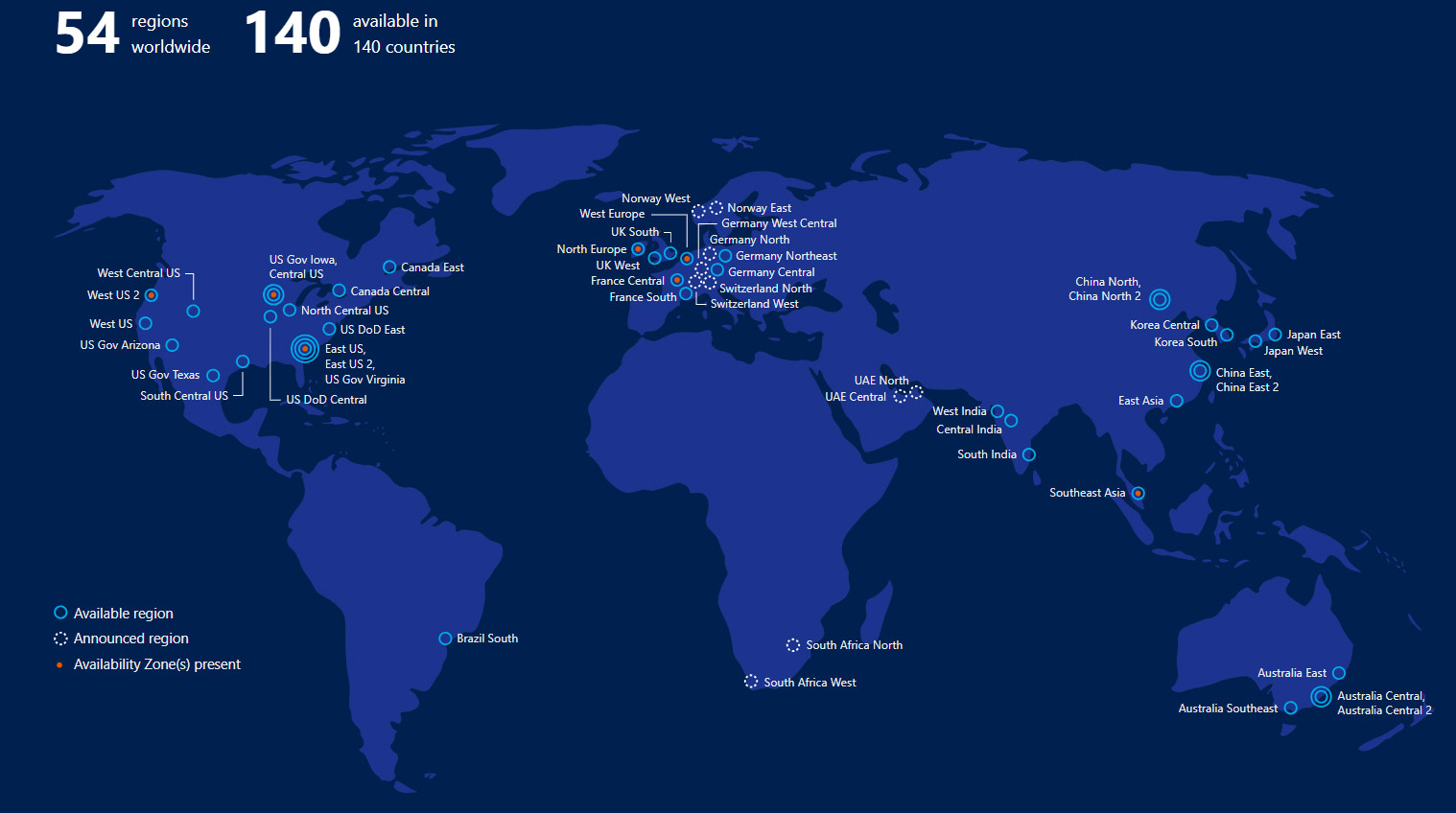
Office 365 data is stored in Microsoft Data Centers around the globe. The Microsoft global infrastructure is made up of Regions, Geographies, and Availability Zones.
- Regions – a set of data centers deployed within a latency-defined perimeter and connected through a dedicated regional low-latency network. With more global regions than any other cloud provider, Microsoft gives customers the flexibility to access data where they need to.
- Geographies – a discrete market, typically containing two or more regions that preserves data residency and compliance boundaries. Geographies allow customers with specific compliance needs to keep their data close. They are fault-tolerant to withstand region failure through the networking infrastructure.
- Availability Zones – physically separate locations within each region. Each zone is made up of one or more data centers equipped with independent power, cooling, and networking. Allos customers high availability and low-latency replication.
Microsoft has 54 regions worldwide and is available in 140 countries. The addresses of the data centers are not disclosed to help keep them secure.
How is the data stored?
The data is stored in the local Geographic location to the organization by default. There are two locations in each Availability Zone, so there are always two up to date copies at any one time. The customer can request to have the data moved to a different location, if required. In the event of a failure, the data is brought up to Production automatically, and another copied made within the Availability Zone. Microsoft makes it an available option (for Exchange Online and Microsoft OneDrive) to store the data in multiple Geographies, called Multi-Geo Replication. This would provide for four copies of the data, two in an Availability Zone in two Geographies.
Office 365 uses service-side technologies that encrypt the data at rest and in transit. For data at rest, Office 365 uses volume-level and file-level encryption. For data in transit, Microsoft uses multiple encryption technologies for communications between data centers and between clients and servers, such as Transport Layer Security (TLS) and Internet Protocol Security (IPsec). Office 365 also has an option for customer-managed security features.
Who Can Access customer data?
The Office 365 data belongs to the customer. They have complete control over it. Microsoft provides extensive privacy controls and visibility into where the data resides and who can get access to it. Microsoft takes strong measure to help protect the customer data from inappropriate access or use by unauthorized persons. This includes restricting access by Microsoft personnel and subcontractors, and carefully defining requirements for responding to government requests for customer data. However, you can access your own customer data at any time for any reason.
And, without further ado, a top 10 list from Microsoft themselves:
Top 10 Security and Privacy Features of Office 365
- Restrict physical data center access to authorized personnel and have implemented multiple layers of physical security, such as biometric readers, motion sensors, 24-hour secured access, video camera surveillance, and security breach alarms.
- Enable encryption of data both at rest and via the network as it is transmitted between a data center and a user.
- Do not mine or access your data for advertising purposes.
- Use customer data only to provide the service; we don’t otherwise look in your mailbox without your permission.
- Regularly back up your data.
- Will not delete all the data in your account at the end of your service term until you have had time to take advantage of the data portability that we offer.
- Host your customer data in-region.
- Enforce “hard” passwords to increase security of your data.
- Allow you to turn off and on privacy impacting features to meet your needs.
- Contractually commit to the promises made here with the data processing terms in your volume licensing agreement.
Links for follow-up:
Office 365 – Microsoft Trust Center
Microsoft Online Services Terms
Data Access – Microsoft Trust Center
Data Location – Microsoft Trust Center
Over the past decade, we have seen Microsoft evolve from the company that makes Windows to one of the top three tech giants, and the second largest cloud services provider behind only Amazon. While Microsoft has been a giant in the industry since the 80’s and 90’s, market share for their Windows operating system has been steadily declining during the rise of mobile devices.
Android and Apple have been slowly taking over the market and edging Microsoft out after a long string of flops. From Groove music, to the Windows phone, Microsoft has been releasing a series of not so great products that get overshadowed by others, and eventually phased out. There is one space they have been excelling in, cloud.
Focusing on the Cloud
With the success of Office 365 and Azure, it’s no surprise that Microsoft is shifting their focus to the cloud. It’s also no surprise that they are shifting the focus of their flagship product to be more in line with their current successes. There have been some major shakeups within the company over the last few years, one of which is to move the Windows operating system operations to the cloud division. Another act that solidifies Microsoft’s intent to bring Windows to the cloud.
Windows Virtual Desktop
Enter Windows Virtual Desktop. The newest iteration of Windows 10 is offered as a remote virtual desktop run in Azure and is accessible from anywhere. Just like every other cloud product MS offers, this means it will always be up to date. No more Windows updates restarting your computer at the most inconvenient times.
The biggest upside of Windows Virtual Desktop will definitely be its impact on IT departments. The fully virtualized OS will bring a lot of benefits with it that were previously only realized through server-based virtualization, which is costly and complicated.
Benefits of Windows Virtual Desktop
- Virtual Desktops will be able to share resources with other Virtual desktops
- Centrally managed through Azure
- Accessible from anywhere, eliminating a lot of networking headaches
- IT departments will be able to deploy new desktops easily and quickly while hardly needing to touch any actual hardware, making it scalable to meet the needs of any company.
- Built in Security and Compliance. Taking a load off any monitoring and protection software
The new virtual desktop will be bundled with Office 365, which will cut costs and ensure companies have everything they need to run in the cloud. The operating system runs on a pay-as-you-go model that Microsoft uses with most of its products.
There are several tiers of this model. Starting with the standard pay-as-you-go, where you can increase compute capacity and storage to fit your needs. You only pay for the virtual machines while they are on. There is also the option to reserve VM instances, which is a fixed price for the VM’s whether they are running or not. While still flexible, this requires a commitment for a length of time.
Redefining the Operating System
In an age of mobile devices, Microsoft is trying to redefine the operating system. They are taking it from a single-device system, to a multi device one. This will allow you to access the same desktop from any device, making it truly mobile.
Though it’s clear that Microsoft has been focusing on other projects, they aren’t leaving Windows by the wayside. The Windows Virtual Desktop may be more suited for business use, but it is a pretty clear indicator of where they want to OS to be in the future. There have been rumors that the next version of Windows will be the last. A single version of Windows that will continue to evolve, but you won’t need to upgrade to the next iteration.
Microsoft isn’t afraid to admit it’s made a few missteps in the last decade, like Windows 8 or the Windows phone. They know where they excel, and the focus has been shifted to cloud. Windows will be another addition to Microsoft’s suite of cloud services, bringing it into the future with the rest of the products that brought about Microsoft’s rise to the top. For almost its entire existence Microsoft has been known for Windows, but times are changing. Windows virtual desktop is a big step towards keeping Windows relevant in the future.
 In April of 2015, Microsoft officially launched Skype for Business. Microsoft’s instant messaging and conferencing program has become more and more useful over the years, making it easier to do things like share documents, give presentations, and video chat.
One benefit that more companies are using or looking into using is utilizing Skype to replace their business’ existing phone system. Zunesis moved their phone system to Skype last year and has only begun to use some of its functionalities.
How Does it Work?
Skype’s Cloud PBX system does almost everything a regular PBX system does, but it also integrates with Office 365, allowing you to do things like send voicemails as an email, eliminating the need to ever check voicemail again. It does everything a landline does, such as hold and transfer, but it also has many features landlines don’t have.
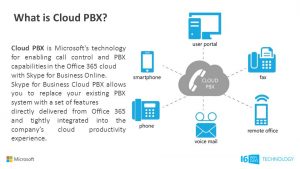
As part of the Office 356 suite, Skype centralizes all administration in the cloud. This simplifies all administrative tasks, and allows users to make and receive calls anywhere, as long as they have the Skype app running on their laptop or mobile device. No longer do employees need to be tethered to a desk phone during business hours, and in a world of increasing mobility, this is incredibly useful. You don’t even need to get new phone numbers to replace your current system, Skype allows you to port any phone numbers, allowing you to keep your business number. No need for new business cards, or any emails to customers telling them your phone number has changed.
Another perk of using Skype instead of a traditional phone line is the flexible subscriptions. You can add or subtract users as you go so you never have to pay for more than what you are using. You can set permissions by giving some users the ability to make international calls, while only allowing others to make domestic calls.
Skype integrates VOIP capabilities with instant messaging and conferencing, making it a great communications tool. One can send instant messages, screen share, or make calls all from the same place, using the same contacts. You can dial by name from any office 365 app, or use the traditional dialer in Skype, which is a welcome familiarity for many users. It also comes with 5 licenses per user, so you can make calls from any device.
Some other features include:
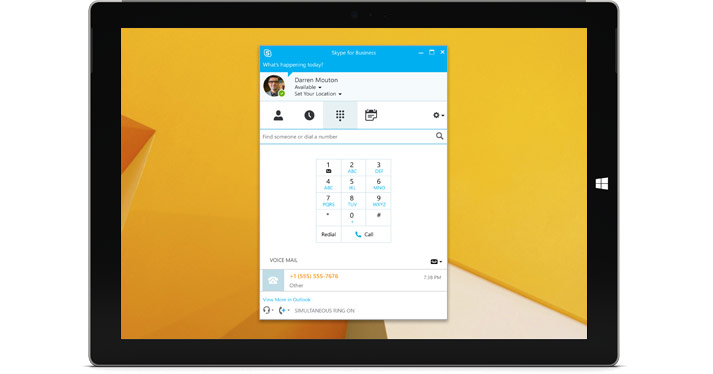 Enterprise calendar call routing: where you can enable or disable call forwarding by using your exchange calendar business hours.
Do-not-disturb routing and call blocking: If you don’t want to be disturbed while you work on a big project, you can easily block calls except from those that you specifically indicate are ok to come through to you.
Device Switching or Transfer a Call to Another Person in your Office: Move from a headset to speakerphone with just a few clicks. Easily transfer calls to other people.
Caller ID, Call Waiting, Call Delegation, Call History and Call Forwarding: All tools available through Skype.
Support: Microsoft offers 24/7 support, so you never have to worry about phone lines going down. Anyone already using Office 365 should definitely be looking to replace their current phone systems with Skype. It offers so much for so little, costing around $8/user, it could end up saving your business money.
Additional Resources on Deployment, Licensing and Features of Skype Business Phone System:
- Set up Calling Plans: This article has step-by-step instructions to get set up with your phone numbers or to transfer your existing phone numbers to Skype for Business.
- Plan your Phone System in Office 365 (Cloud PBX) solution: This TechNet article lays out all of your deployment options. It also has information about planning an entirely cloud-only solution.
- Skype for Business and Microsoft Teams add-on licensing: Learn which licenses you need to buy to get the Phone System in Office 365.
- Set up Phone System voicemail – Admin help
- Discover Skype for Business: Help the people in your company learn how to use Skype for Business features.
As of September 2017, Microsoft announced that Microsoft Teams will replace Skype for Business and will add more functionality. The transition will occur over the next three years and Zunesis will keep you updated as further announcements are made.
If you are interested in learning more about using Skype for Business for your phone system, contact Zunesis for more information on how we can set up your company with licenses.
